
Core supports bulk uploading of incidents with attached files. This article will walk you through how that is done.
Please Note:
- Files that are attached to incidents will no longer be in the zone they were uploaded to.
- Files need to be uploaded into the same zone as where the incident will be created.
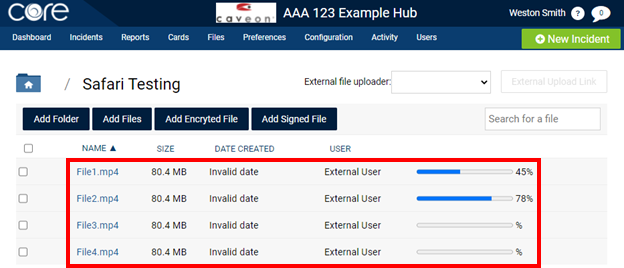
1- Upload the files that need to be attached to the incidents into Core. Please see the articles How to Upload Files to Core.
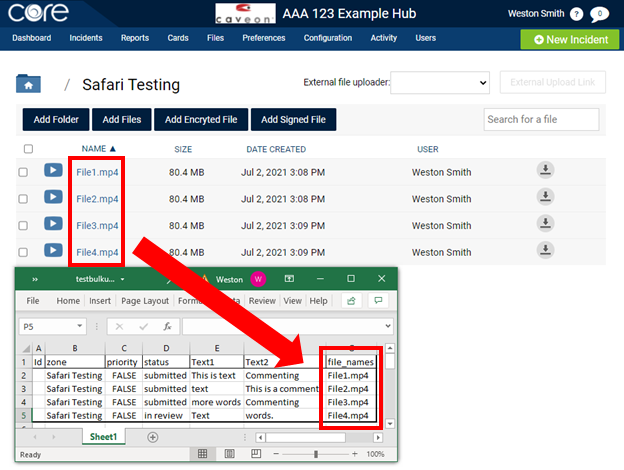
2- Set up your bulk incident upload then add a column with the name "file_names" (without the quotes). Then add the names of the files as the appear in core.
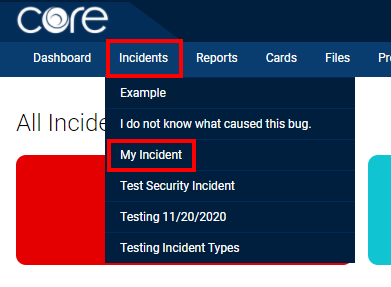
3- Click on the incidents option at the top of the page and select the incident type you are going to upload to.
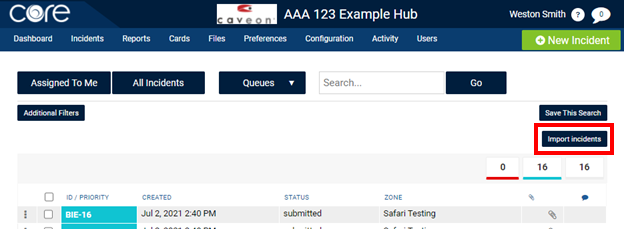
4- Click on the import incidents button on the right side of the page.
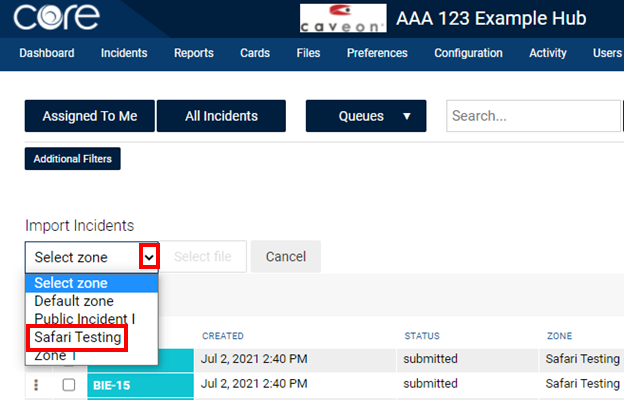
5- Use the Select zone drop down menu and the click on the Zone where the files were uploaded.
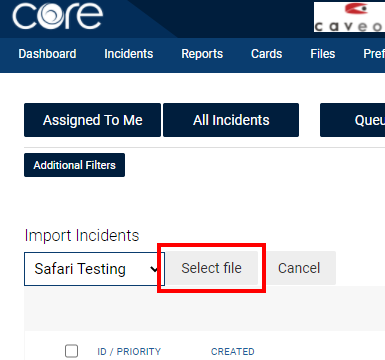
6- Click on the Select file button.
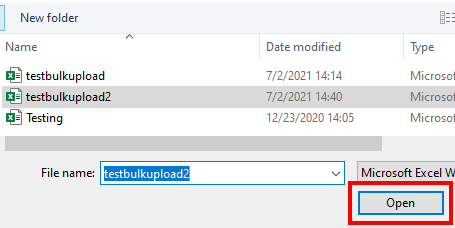
7- Upload your excel file.
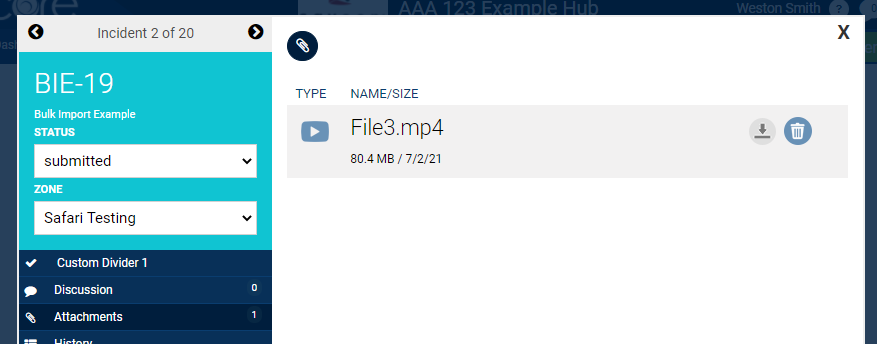
8- You will then see the file attached to the incidents under attachments.
Comments
0 comments
Article is closed for comments.