
If you are using macOS (apple), look at the article: How to use MACPASS (KeePass for macOS)
If you need help installing KeePass, please see the article: How to Install KeePass on Windows
How to Set up KeePass Database
1- Open KeePass

2- Click the File option.
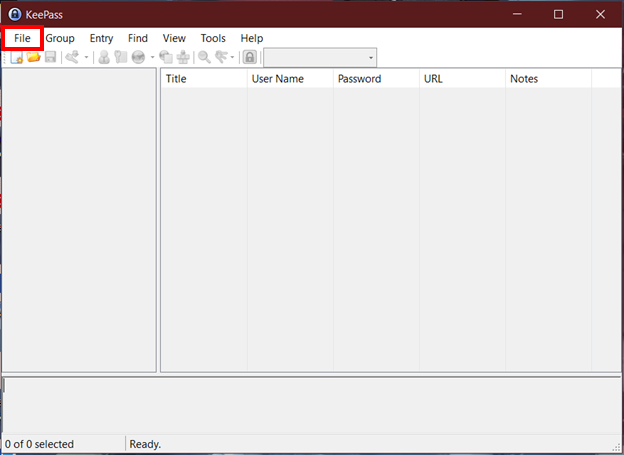
3- Click on New...
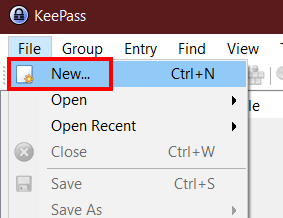
4- Click the OK button.
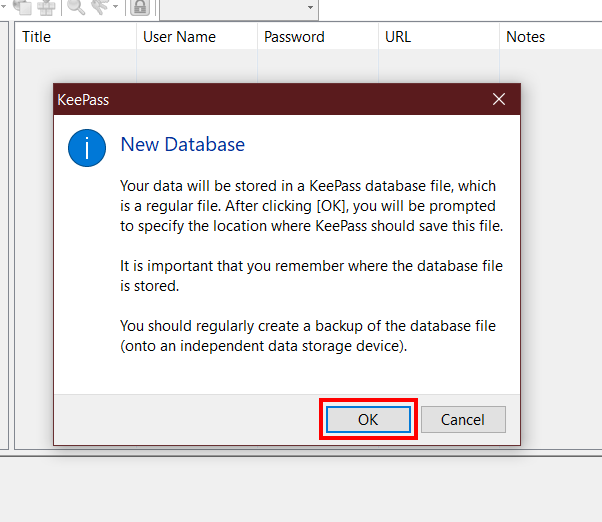
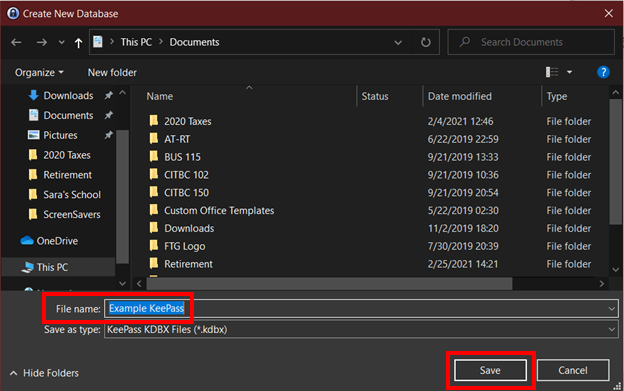
5- Type a name for the file in the box next to File name: This file will be the database for your passwords.
Then click the Save button.
6- Type in a password. This password needs to be strong and you need to remember it.
Note: This password needs to be remembered or you cannot access your other passwords managed by KeePass. The password for KeePass cannot be recovered.
Tips for a good password:
- Do not use words or names
- Use capital and lower case letters
- Use numbers
- Use special characters like !@#$%&*
- At least 10 characters in length
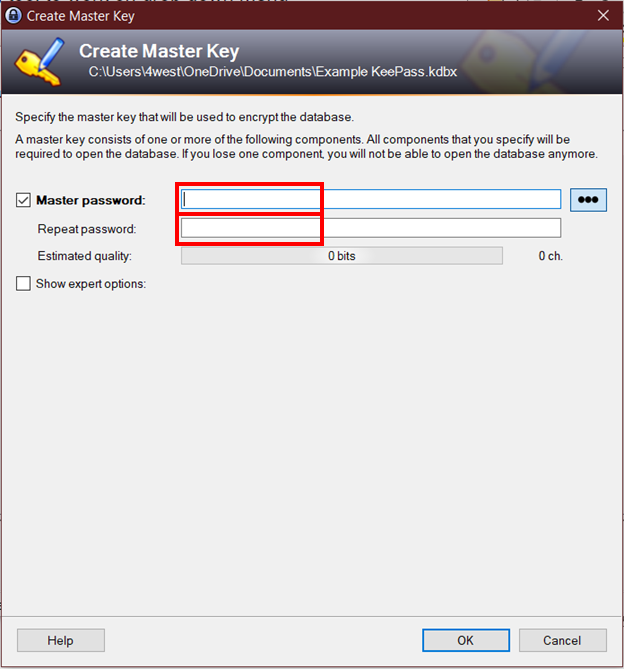
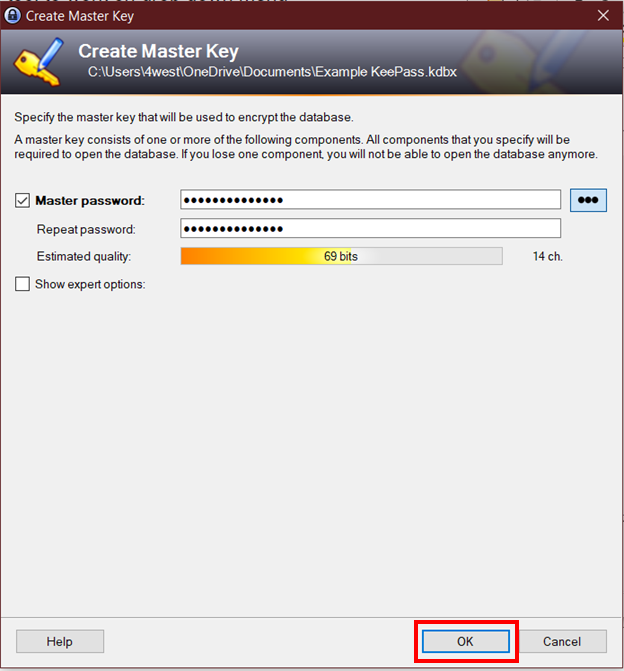
7- Click the OK button.
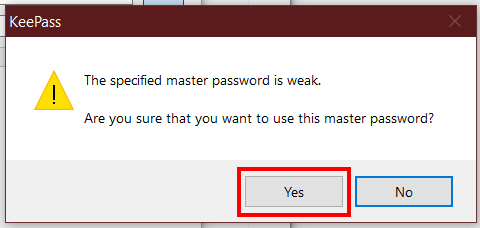
8- If you see this warning message and you have followed these guidelines:
- Do not use words or names
- Use capital and lower case letters
- Use numbers
- Use special characters like !@#$%&*
- At least 10 characters in length
Click the Yes button.
If you did not see this warning go to the next step.
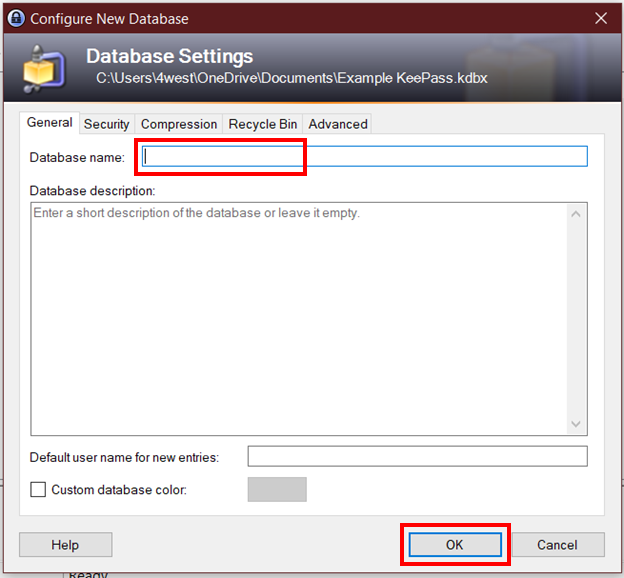
9- Type a name for your database in the box next to Database name: Then click the OK button.
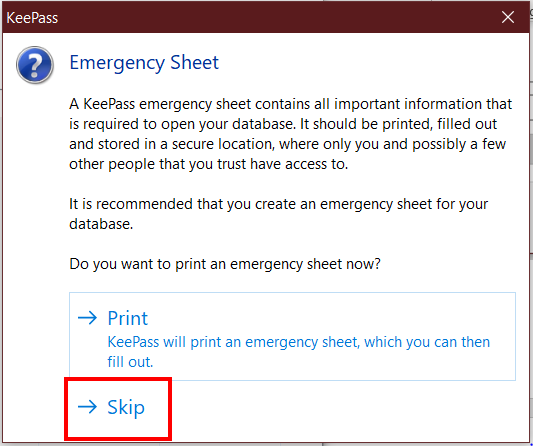
10- Click Skip
How to Save and Generate Password
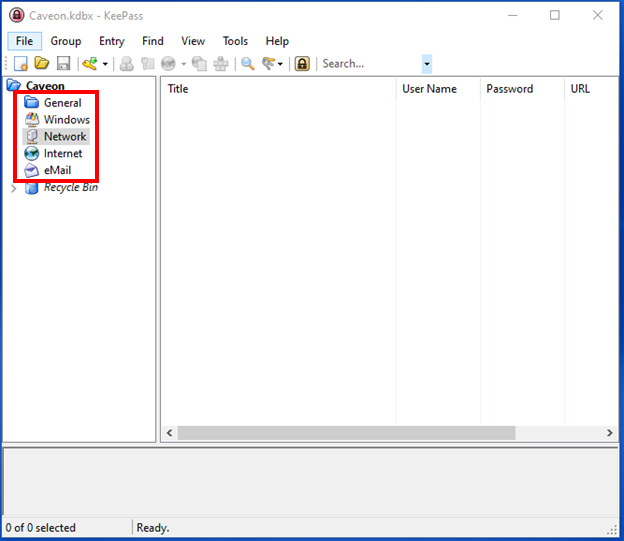
1- Select a section your would like the save the password under.
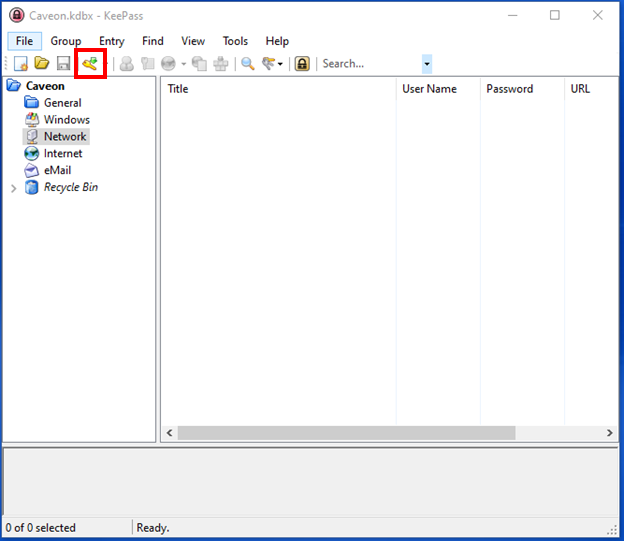
2- Click on the Key symbol
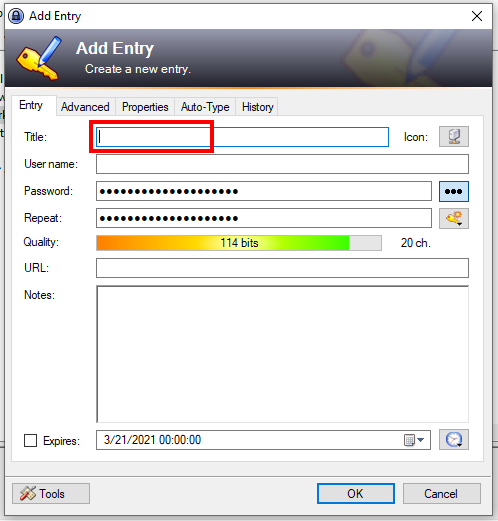
3- Type in a name for the password in the box next to Title:
4- Enter a username if you would like in the box next to User name:
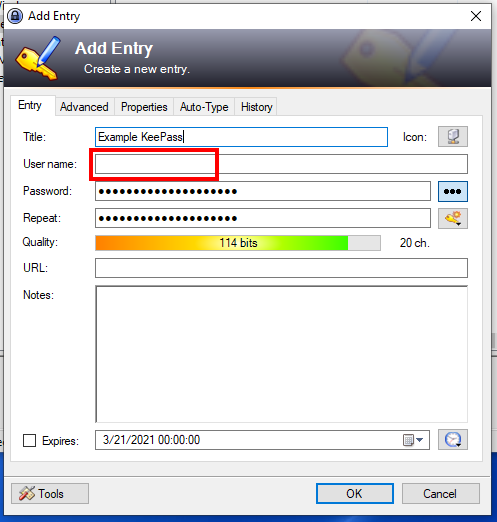
5- When you make a new password entry, KeePass automatically generates a password for you. Some password have to fit within certain parameters. Click on the key symbol to change the password is generated.
NOTE: You also can type in a custom password in the password box. If you do this, skip to step 9.
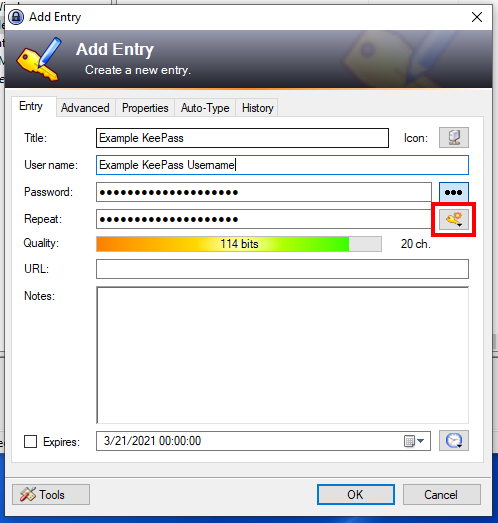
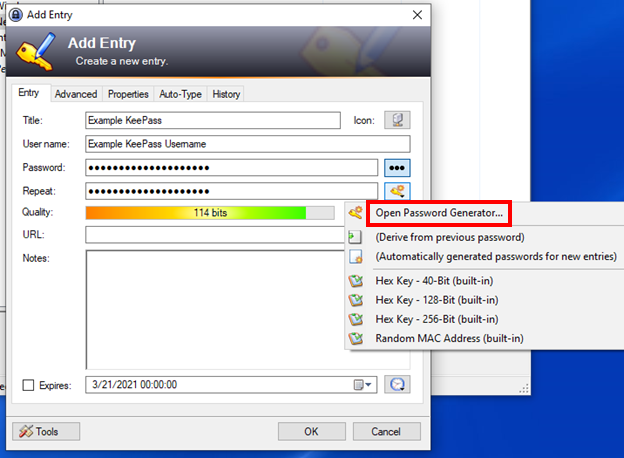
6- Click on Open Password Generator...
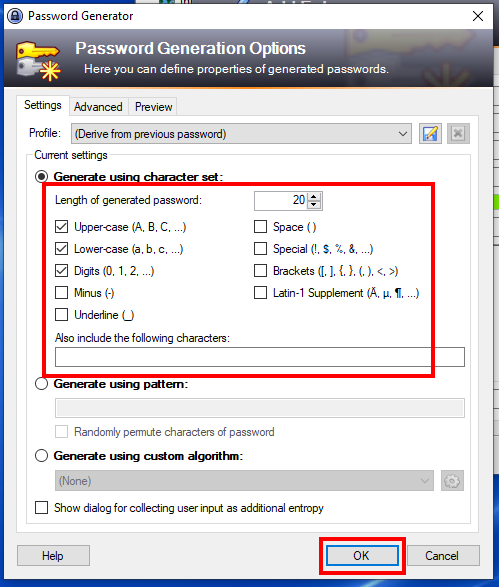
7- Here you can change the length of the password and choose to include different kinds of characters. Click the OK button when done.
8- Optional You can write notes in the Notes: section.
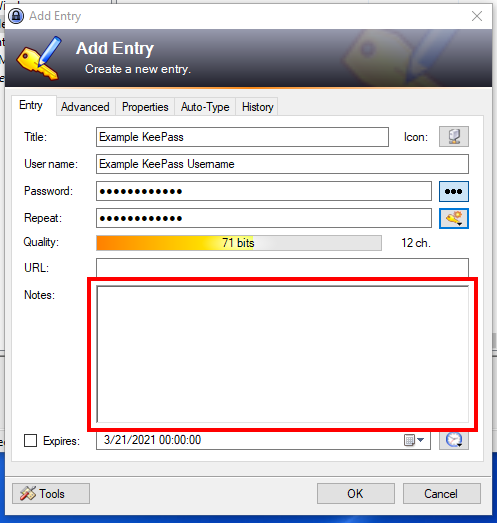
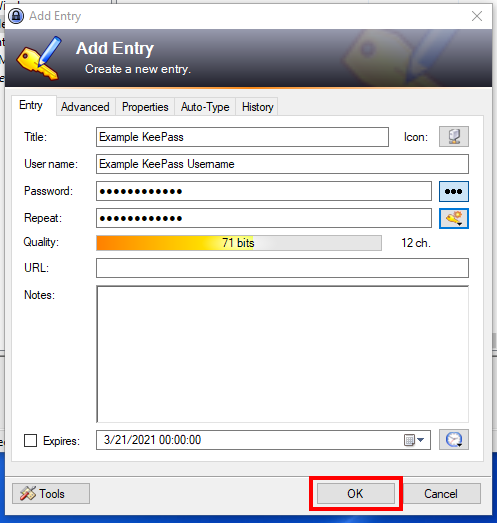
9- Click the OK button.
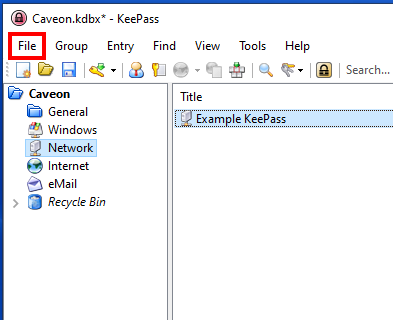
10- MAKE SURE TO SAVE CHANGES IN THE DATABASE! If you do not save the changes you will loose the password. Click the File option.
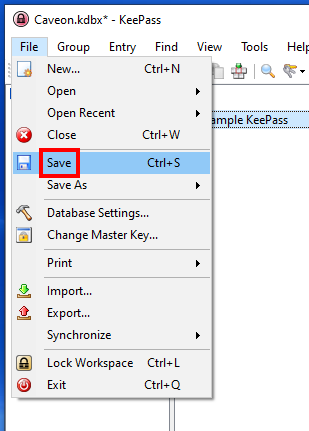
11- Click Save.
How to Use the Password
There are two options.
Option 1 Copy the Password
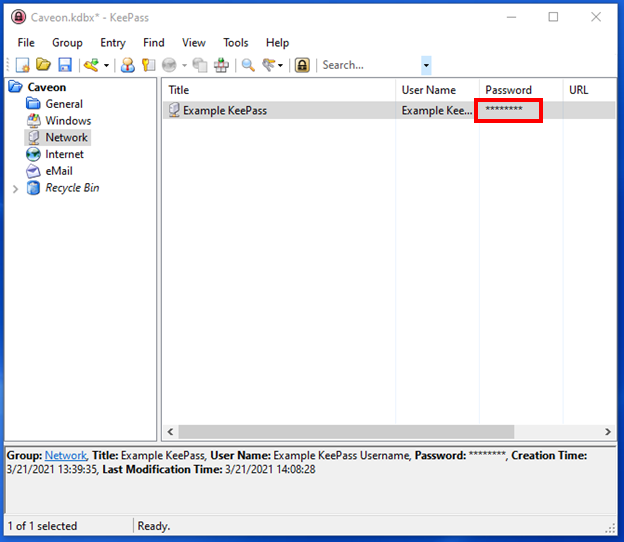
1- Double click on the password section of the entry. The password will be copied for 12 seconds.
Option 2 See the Password for Manual Typing
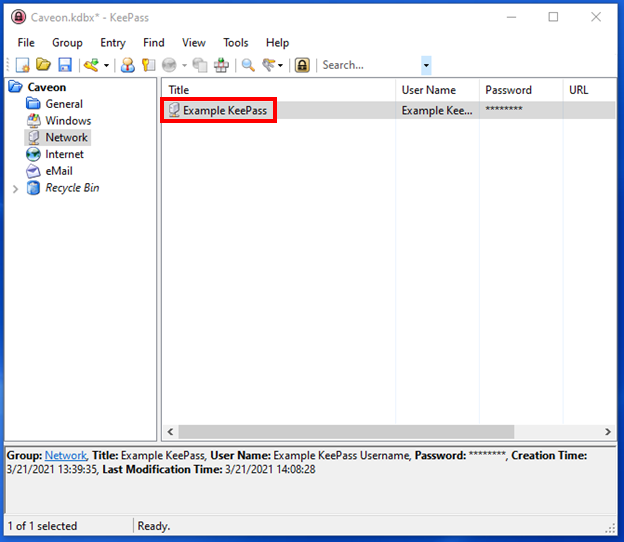
1- Double click on the name of the entry.
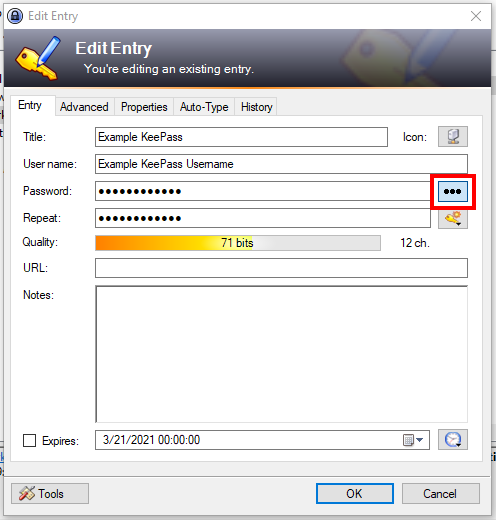
2- Click on the box with the three horizontal dots.
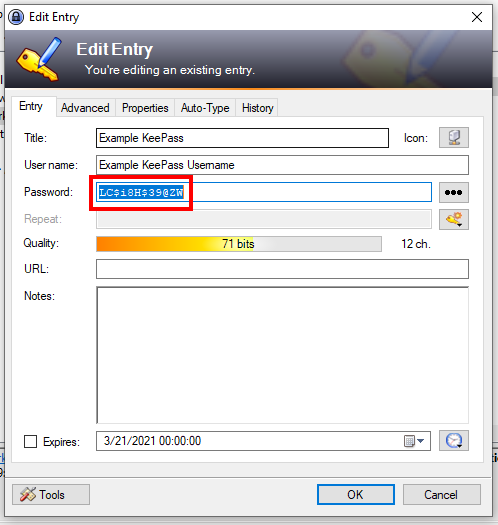
3- You can now see the password.
Comments
0 comments
Article is closed for comments.