
If you are using macOS (apple) please see How to install MACPASS (KeePass) on macOS
If you need help using KeePass, see the article How to use KeePass (Windows)
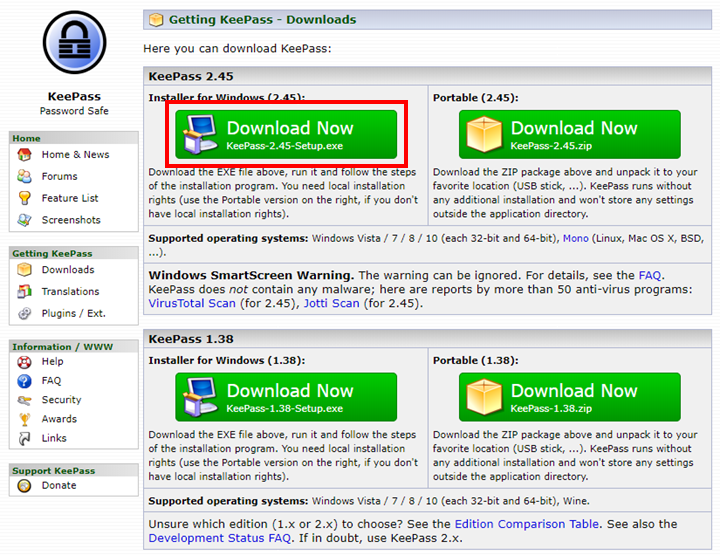
- Go to https://keepass.info/download.html and download the KeePass 2.45 (the version number will change over time but it will be the first option in the top left side shown below)
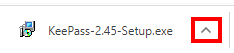
- Click on the upwards arrow on the KeePass-2.45-Setup.exe (in this demonstration I am using Google Chrome).
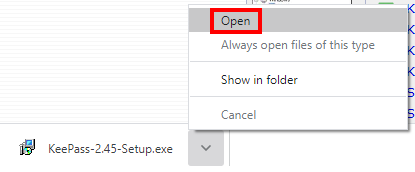
- Click on the Open option.
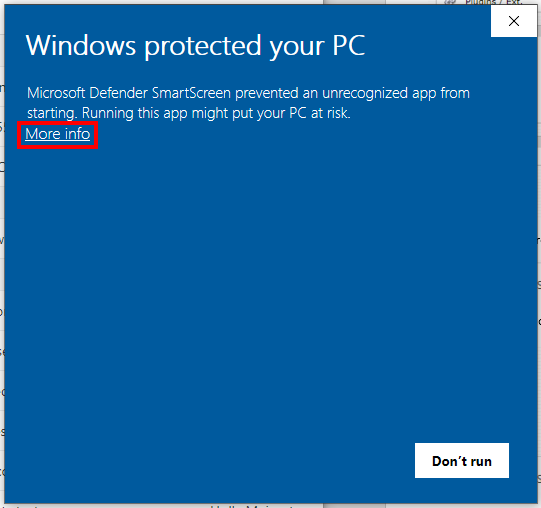
- Click on More info.
- Click on the Run anyway button.
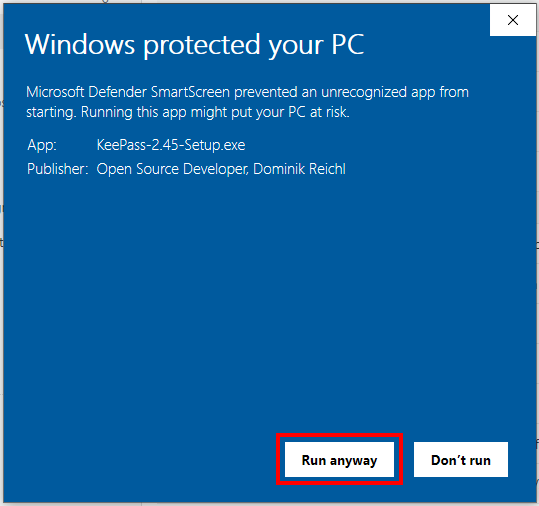
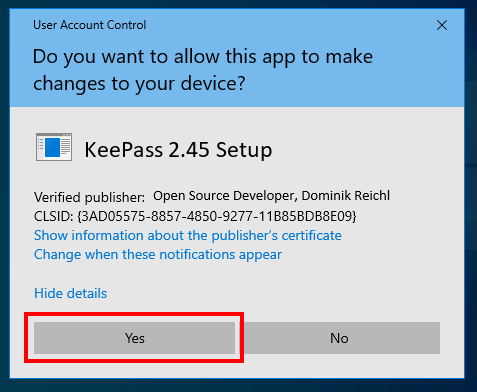
- Click the Yes button.
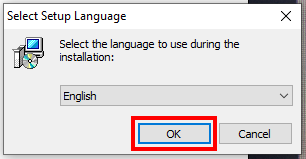
- Click the OK button.
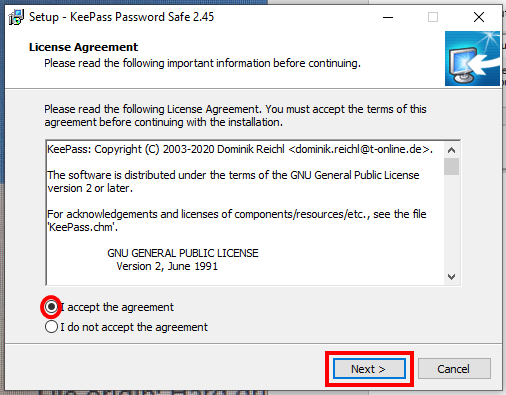
- Click on the circle next to I accept the agreement. Then click on the Next > button.
- Click on the Next > button.
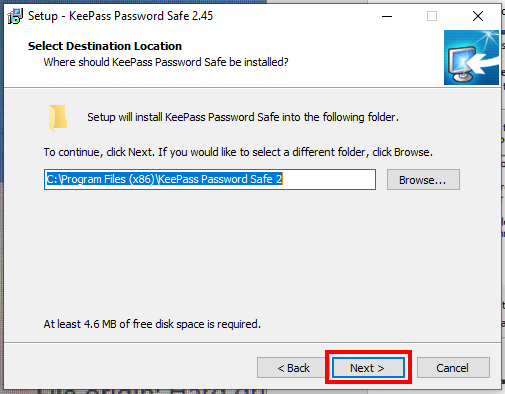
- Click on the box next to Create a desktop shortcut. Then click the Next > button.
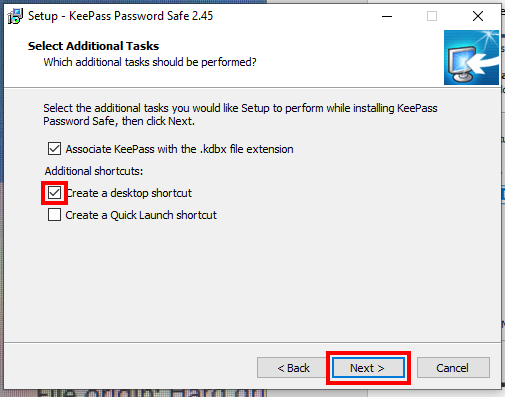
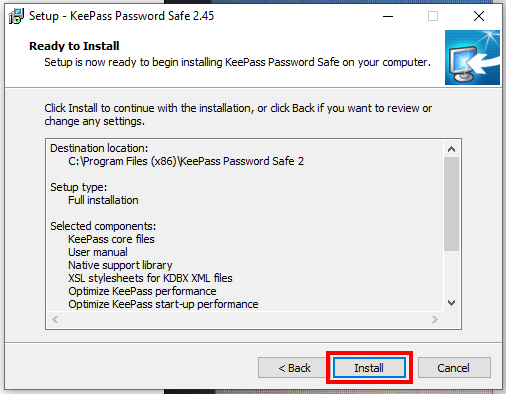
- Click on the Install button.
12. Click on the Finish button.

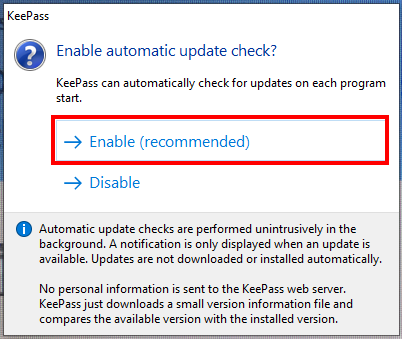
14. Click on the Enable (recommended) option.
Comments
0 comments
Article is closed for comments.