
If you need help connecting to LogMeIn Rescue and you are using a computer running Windows, please see: How to Connect to LogMeIn Rescue (Windows)
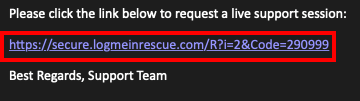
1- You will be sent an e-mail. Click on the link.
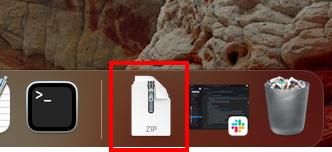
2- Click on your downloads icon (this may vary depending upon what you last downloaded but it should normally be near the garbage can icon).
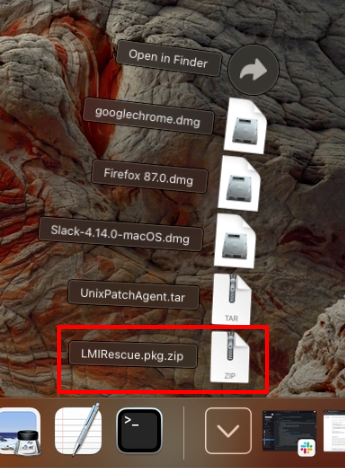
3- Click on LMIRescue.pkg.zip
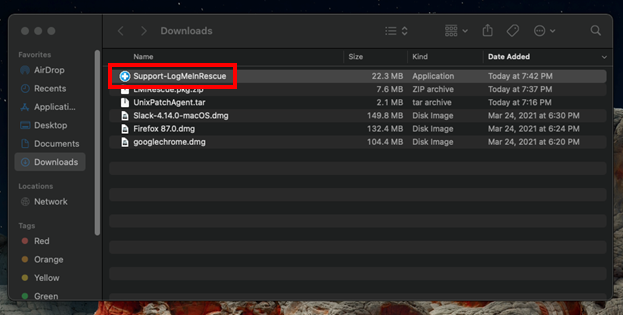
4- Double click on Support-LogMeInRescue
5- Click on the Open button.

6- Click the OK button.
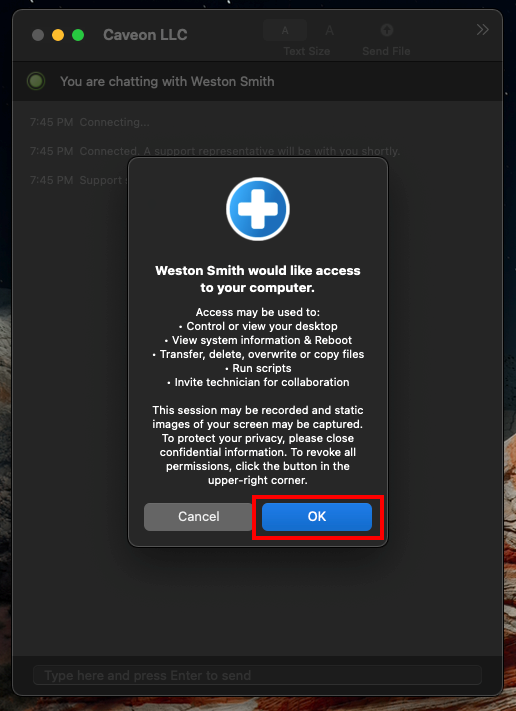
6- Click on the Open System Preferences button.
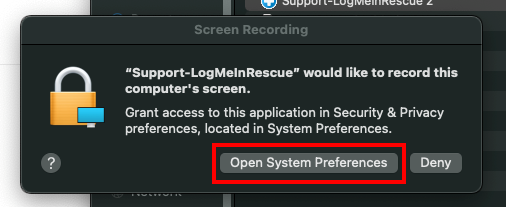
7- Click on the Accessibility tab (you may have to scroll through to find it).

8- Click on the lock icon.
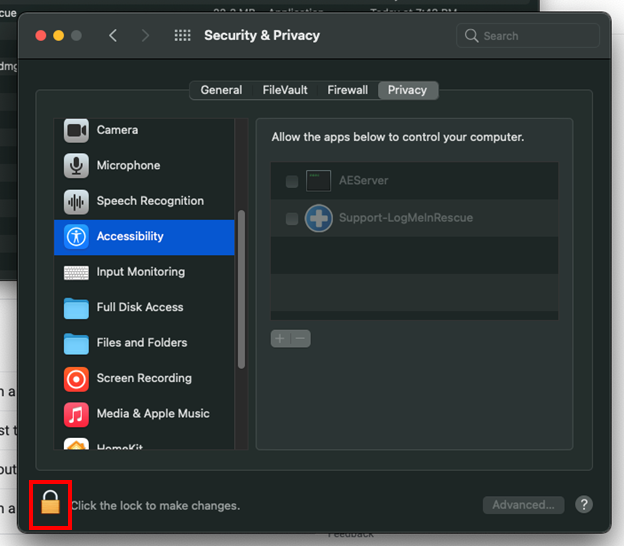
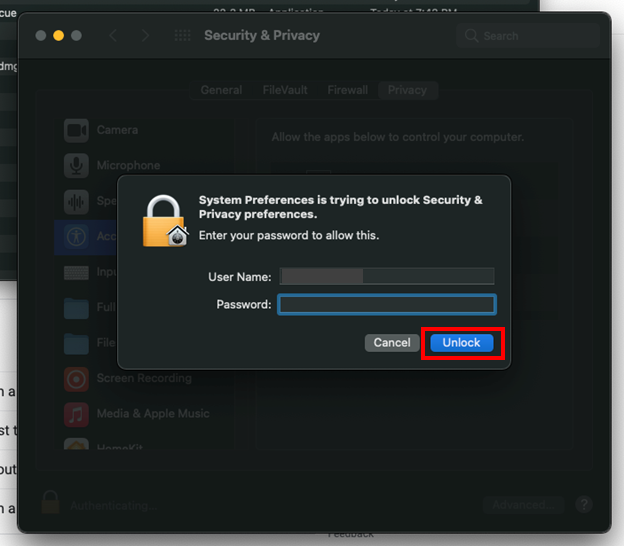
9- Type in your password.
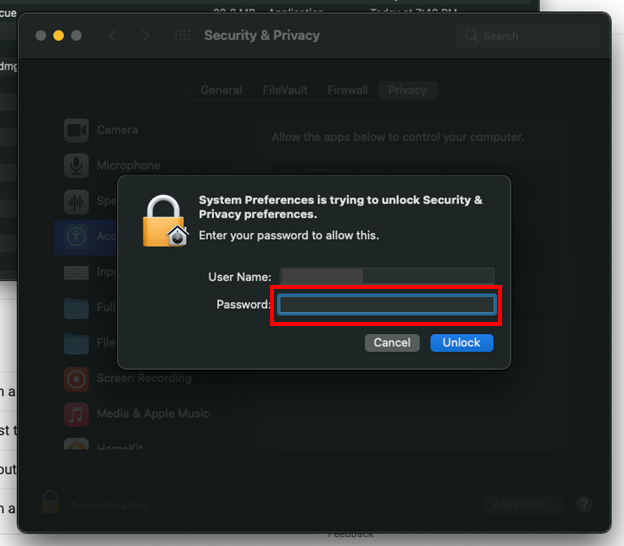
10- Click the Unlock button.
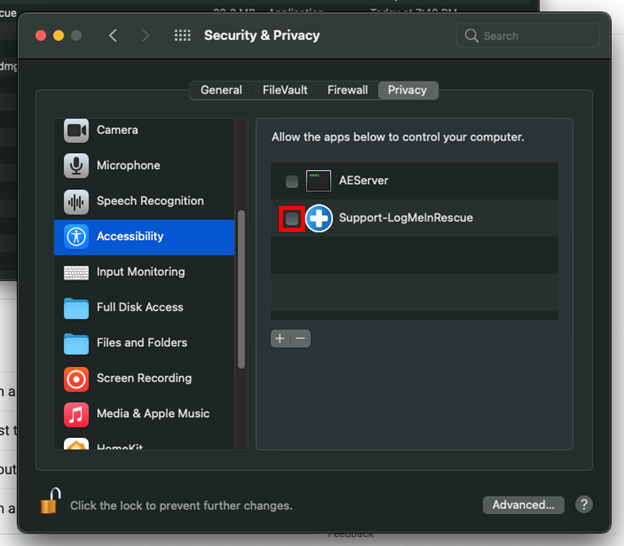
11- Click on the box next to the LogMeIn Rescue plus icon. (Make sure the is a checkmark in the box)
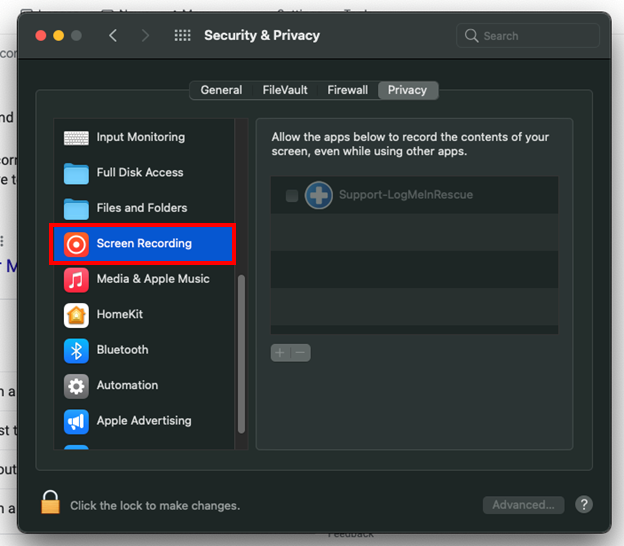
12- Click on the Screen Recording tab (you may have to scroll through to find it).
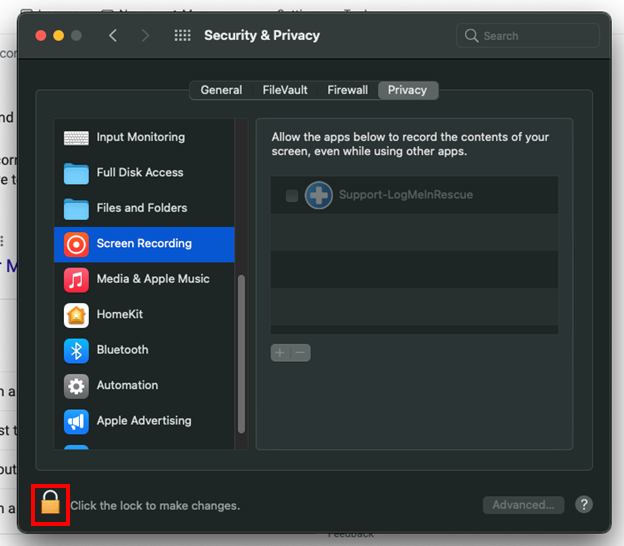
13- Click on the lock icon.
14- Type in your password.
15- Click the Unlock button.
16- Click on the box next to the LogMeIn Rescue plus icon. (Make sure the is a checkmark in the box)
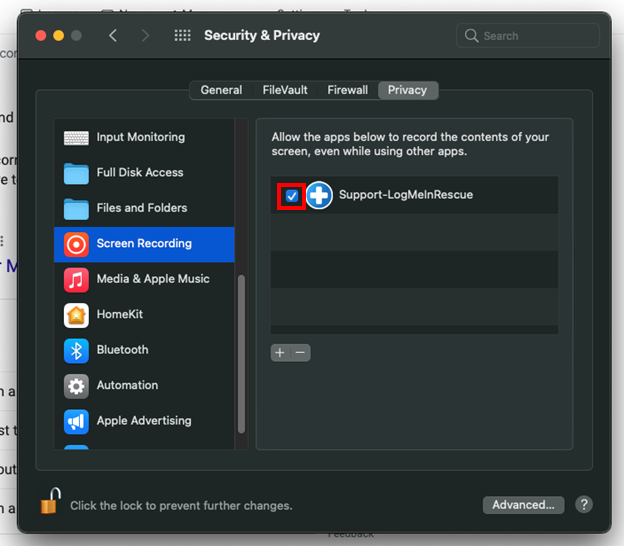
17- Click on the Quit & Reopen button.

Comments
0 comments
Article is closed for comments.