
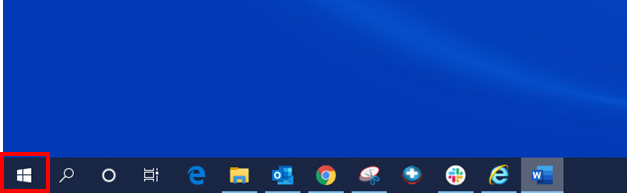
1- Click on the start button on the bottom right hand corner of the screen.
2- Click on settings/ gear icon.
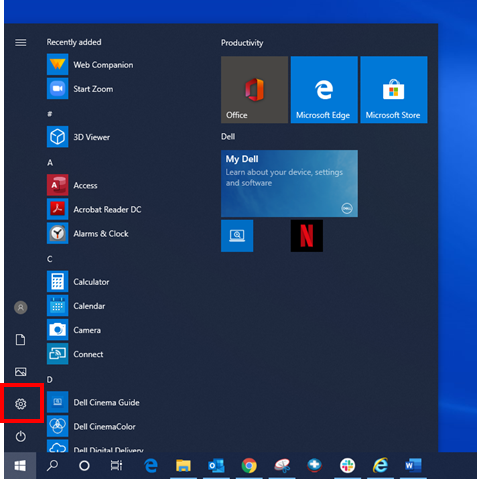
You will then see the following window:
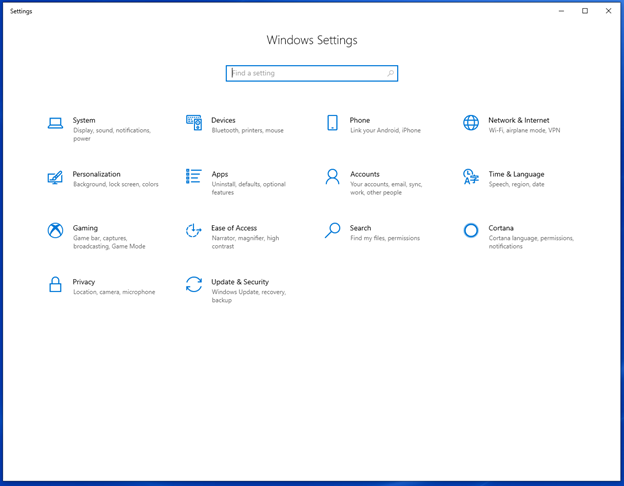
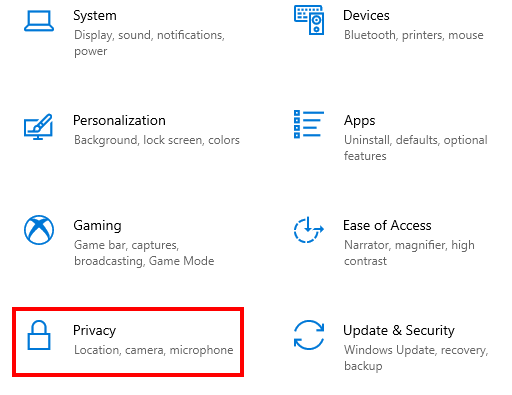
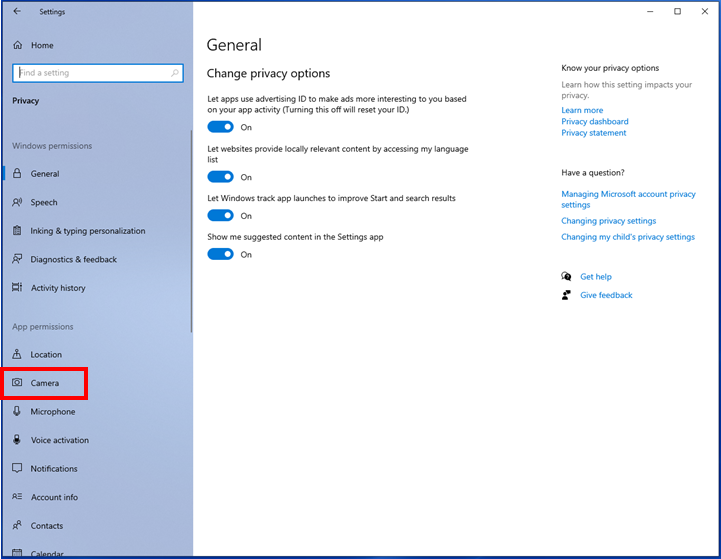
3- Click on Privacy.
4-Click on Camera on the left-hand side of the screen.
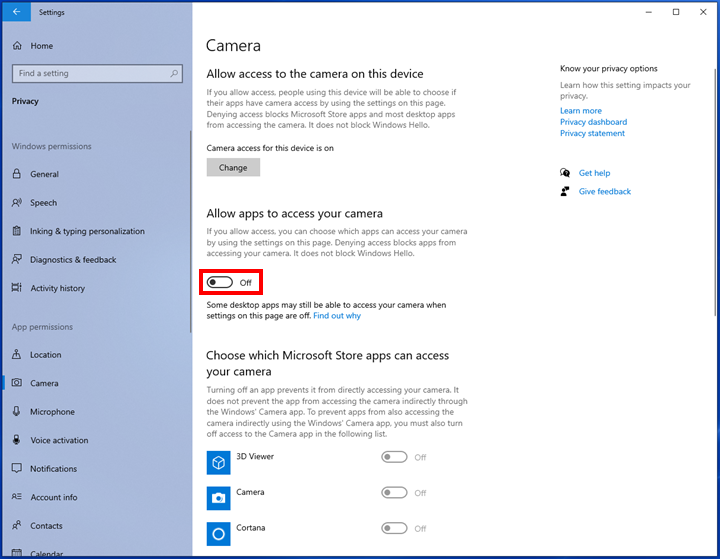
5- Click on the slider below Allow apps to access your camera.
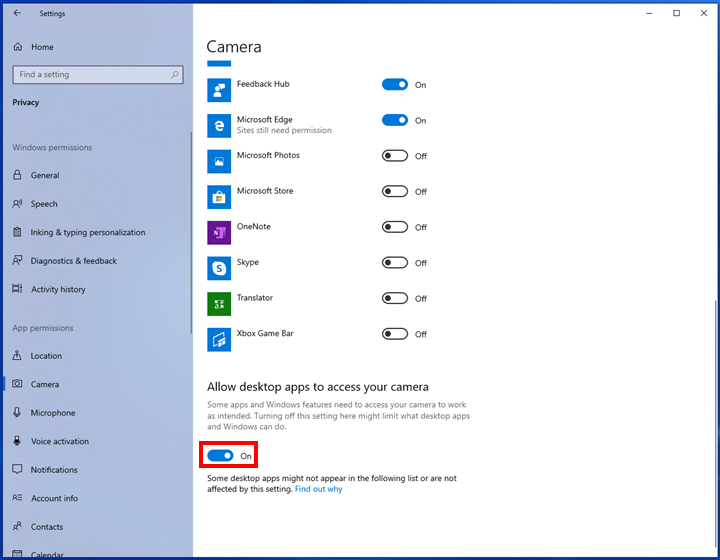
6- Scroll down until you see the slider below Allow desktop apps to access your camera. Make sure it says on, if it is not on, click on it.
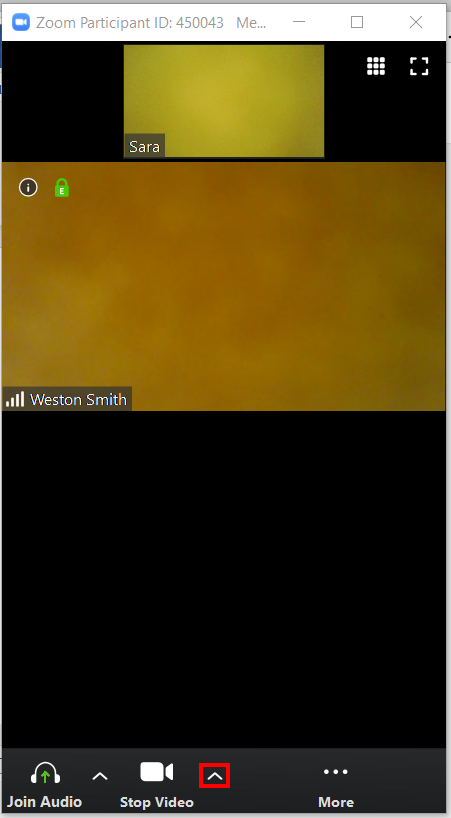
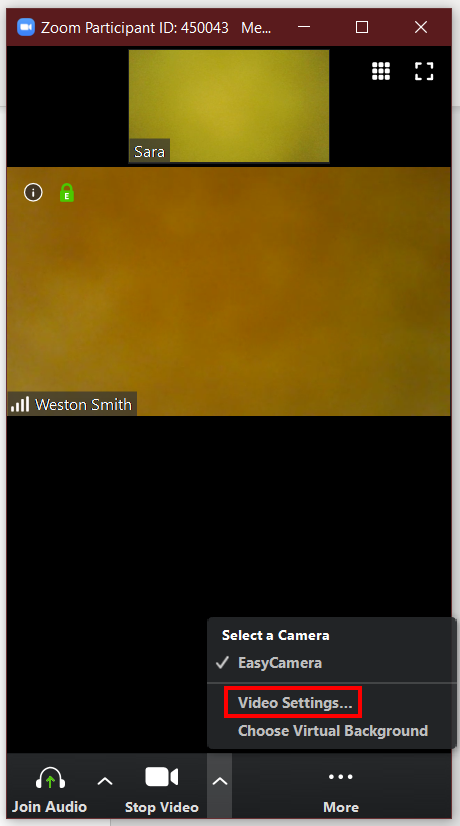
7- Restart zoom. Click on the up arrow next to Stop Video.
8- Click on Video Settings...
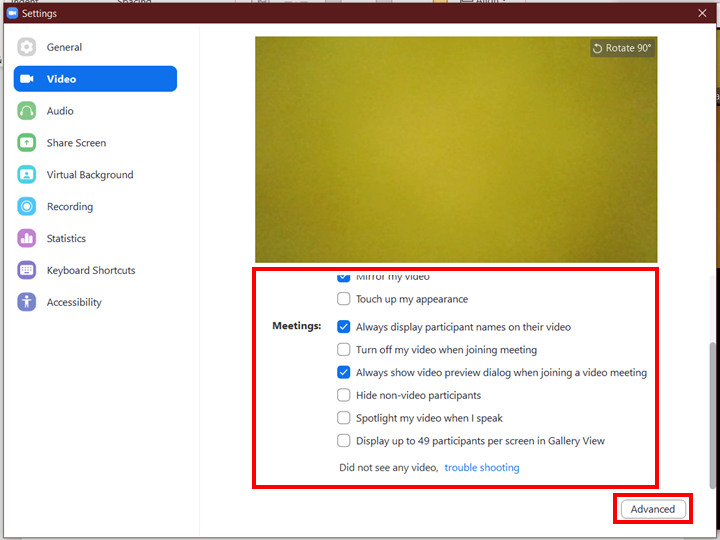
9- Here you can adjust video settings. You can see more options when clicking on the Advanced button.
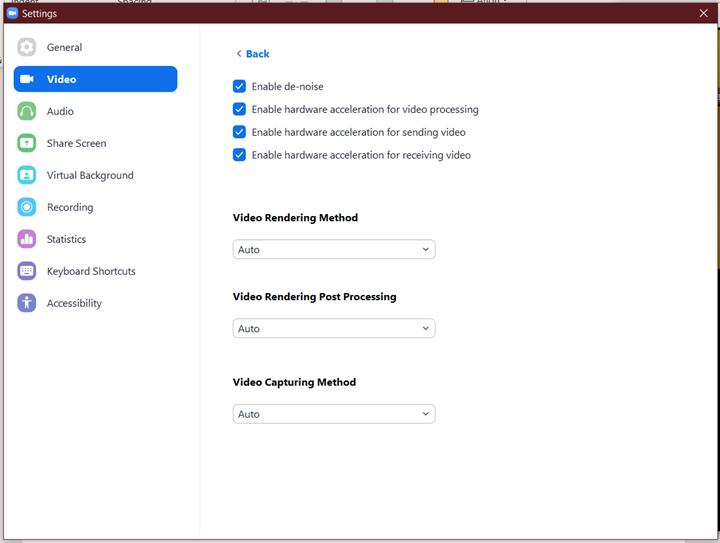
Advanced settings:
Comments
0 comments
Article is closed for comments.